How to Download MyGov Certificates Online: Step-by-Step Portal Guide
In today’s digital era, many government-related services have become easier to access online, and MyGov is one such platform that helps citizens participate in government initiatives, campaigns, quizzes, and awareness programs. One of the most useful features of this platform is the ability to receive downloadable certificates after completing certain activities. Whether you participated in a quiz, attended an online campaign, completed a pledge, or joined a public awareness initiative, MyGov certificates serve as official recognition of your participation.
However, many users struggle to find where their certificates are stored or how to download them properly. If you’ve completed an activity on MyGov and are wondering how to access your certificate, this guide explains the entire process in a simple and practical way.
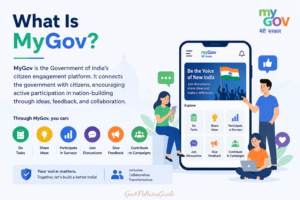
What Is MyGov?
MyGov is the Government of India’s citizen engagement platform that allows people to participate in discussions, tasks, competitions, surveys, and campaigns launched by different ministries and departments.
The platform was introduced to strengthen citizen participation in governance. Instead of limiting public involvement to offline programs, MyGov offers a digital space where citizens can contribute ideas, take part in awareness initiatives, and stay informed about government programs.
Common activities available on MyGov include:
- Online quizzes
- Pledge campaigns
- Creative competitions
- Awareness programs
- Surveys and consultations
- Volunteer initiatives
- Certificate-based participation campaigns
Many of these activities provide certificates that participants can download after successful completion.
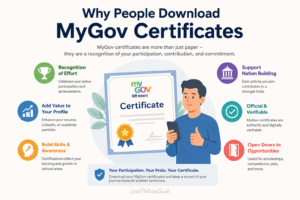
Why People Download MyGov Certificates
Certificates from MyGov are often useful for multiple reasons.
Some people download them simply as proof of participation in a national campaign. Others use them to showcase involvement in educational or awareness programs.
Common reasons include:
Academic Use
Students often add MyGov certificates to:
- School portfolios
- College activity records
- Scholarship applications
- Internship documentation
Professional Use
Working professionals may include participation certificates in:
- Resume profiles
- Skill portfolios
- Awareness training records
Personal Achievement
Many citizens participate in public campaigns related to:
- Environment
- Health awareness
- Digital literacy
- Constitution awareness
- National events
The certificate becomes a record of civic participation.
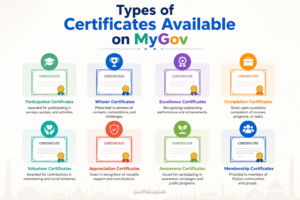
Types of Certificates Available on MyGov
Not every activity provides a certificate, but many do.
Examples include:
Quiz Certificates
Government awareness quizzes often provide certificates upon successful completion.
Examples:
- Constitution Quiz
- Yoga Quiz
- Digital India Quiz
- Azadi Ka Amrit Mahotsav Quiz
Pledge Certificates
Users can receive certificates after taking digital pledges such as:
- Swachh Bharat pledge
- Anti-drug pledge
- Water conservation pledge
- Road safety pledge
Campaign Participation Certificates
Certain awareness campaigns issue participation certificates.
Examples:
- Fit India movement
- Mission LiFE campaigns
- Health awareness drives
Competition Certificates
Some design contests, writing contests, and innovation challenges provide participation or achievement certificates.
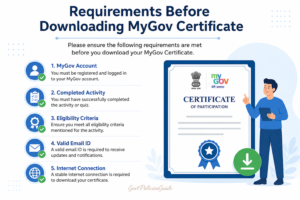
Requirements Before Downloading MyGov Certificate
Before you begin, make sure you have:
1. Registered MyGov Account
You need the same account used while participating.
This may be linked through:
- Email ID
- Mobile number
- Social login (if applicable)
2. Stable Internet Connection
A weak connection may interrupt PDF loading.
3. Correct Login Credentials
Keep ready:
- Registered mobile number
- Email address
- Password
- OTP access (if needed)
4. Browser Compatibility
Use updated browsers such as:
- Google Chrome
- Microsoft Edge
- Mozilla Firefox
- Safari
Step-by-Step Guide to Download MyGov Certificate Online
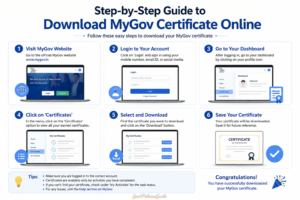
Follow these steps carefully.
Step 1: Visit the Official MyGov Website
Open your browser and go to the official portal:
Always use the official website to avoid fake portals.
Check for:
- Correct domain name
- Secure HTTPS connection
Step 2: Click on Login
On the homepage, look for the Login button.
It is usually located in the top-right corner.
Click it to proceed.
Step 3: Enter Your Credentials
Log in using the account you used for the activity.
You may need:
- Mobile number
- Email ID
- Password
- OTP verification
If you forget your password, use the reset option.
Step 4: Access Your Profile Dashboard
After logging in, go to your account profile.
Look for sections like:
- Profile
- Dashboard
- My Activities
- Participation History
The exact layout may change depending on website updates.
Step 5: Locate Completed Activities
In your activity history, find the campaign or quiz you completed.
Examples:
- A completed pledge
- Submitted quiz
- Participation campaign
Check status indicators such as:
- Completed
- Submitted
- Participation confirmed
Step 6: Find Certificate Option
Once you open the completed activity, look for:
- Download Certificate
- View Certificate
- Get Certificate
- Certificate PDF
If the activity offers certification, this option should appear.
Step 7: Download the Certificate
Click the certificate button.
Usually:
- A PDF opens in the browser.
or - File downloads automatically
Save it to your device.
Recommended file naming:
MyGov_Certificate_ActivityName.pdf
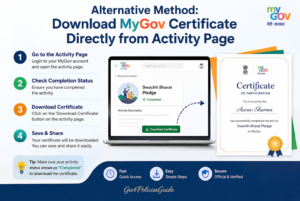
Alternative Method: Download Directly from Activity Page
Sometimes certificates are available directly from the campaign page.
Process:
- Open MyGov
- Search for the campaign name
- Open the activity
- Log in if prompted
- Click certificate option
This works for some activities.
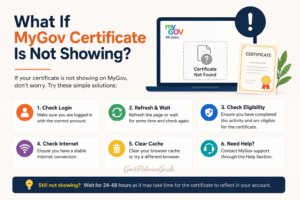
What If the Certificate Is Not Showing?
This is a common issue.
Possible reasons include:
Activity Does Not Offer Certificate
Not every campaign includes certification.
Check activity details.
Look for terms such as:
- Participation certificate available
- Completion certificate issued
Activity Not Fully Completed
Some users partially complete a task.
Examples:
- Quiz submitted incompletely
- Pledge confirmation missed
- Required form not submitted
Complete all steps.
Processing Delay
Certificates may not appear instantly.
Processing can take:
- A few minutes
- Several hours
- Occasionally 1–3 days
Wait and check later.
Logged Into Wrong Account
This happens frequently.
If you used:
- Another email
- Different mobile number
The certificate will not appear.
Log out and try the correct account.
Browser Cache Issue
Sometimes old browser cache causes display problems.
Fix:
- Refresh page
- Clear cache
- Try incognito mode
- Switch browser
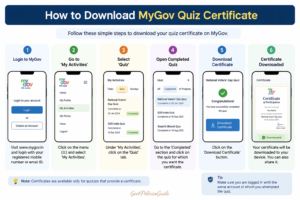
How to Download MyGov Quiz Certificate
Quiz certificates are among the most commonly downloaded.
Steps:
- Visit MyGov portal
- Login
- Open completed quiz
- Locate result page
- Click download certificate
- Save PDF
Some quizzes only issue certificates after passing minimum criteria.
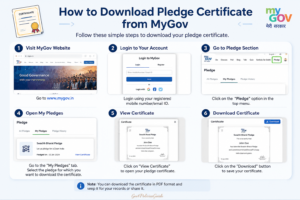
How to Download Pledge Certificate from MyGov
For pledge campaigns:
- Open MyGov
- Login
- Search your pledge campaign
- Open completed pledge
- Click certificate button
- Download PDF
Some pledge certificates are generated instantly.
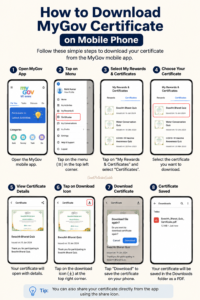
How to Download Certificate on Mobile Phone
You can also use a smartphone.
Steps:
- Open browser
- Visit MyGov website
- Login
- Go to profile/dashboard
- Open completed activity
- Download certificate
Mobile browsers supported:
- Chrome
- Safari
- Edge
PDF usually saves in:
- Downloads folder
- Browser downloads
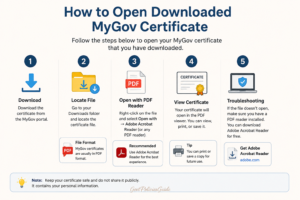
How to Open Downloaded Certificate
Certificates are generally PDF files.
Use:
- Adobe Acrobat Reader
- Google Drive PDF viewer
- Browser PDF viewer
- Phone document viewer
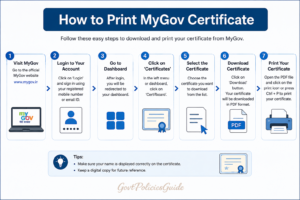
How to Print MyGov Certificate
If you need a hard copy:
- Open downloaded PDF
- Click print
- Select printer
- Choose paper size
- Print certificate
Recommended:
- A4 paper
- High-quality print
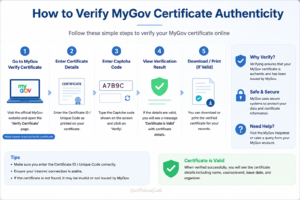
How to Verify Certificate Authenticity
Most MyGov certificates are issued directly through the official government platform.
Verification indicators:
- Official MyGov branding
- Government logos
- Activity name
- Date
- Participant details
Some certificates may include unique IDs or QR verification.
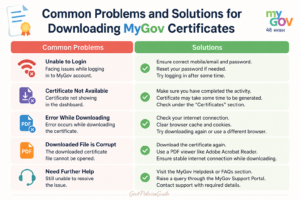
Common Problems and Solutions
Problem: Login Not Working
Solution:
- Reset password
- Check mobile number
- Retry after some time
Problem: Certificate Button Missing
Solution:
- Confirm activity completion
- Wait for processing
- Check activity rules
Problem: PDF Not Opening
Solution:
- Download again
- Update PDF reader
- Try another browser
Problem: Wrong Name on Certificate
Solution:
Profile details may have been incorrect.
Check:
- Account name
- Activity submission details
If editable, update the profile before reissue.
Problem: Download Keeps Failing
Solution:
- Check internet
- Disable popup blocker
- Try desktop browser
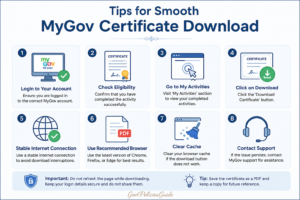
Tips for Smooth Certificate Download
Helpful practices:
- Use updated browser
- Save certificate immediately
- Keep backup copy
- Screenshot completion confirmation
- Use correct login credentials
Is MyGov Certificate Free?
In most cases, yes.
Certificates for government awareness programs, pledges, and public participation campaigns are generally free.
Be cautious of third-party sites asking for payment.
Always use official sources.
Is MyGov Certificate Useful?
The usefulness depends on context.
They can help demonstrate:
- Civic participation
- Awareness engagement
- Educational involvement
- Event participation
However, their acceptance varies depending on institution or employer.
Safety Tips
For security:
- Never share OTP
- Avoid unofficial websites
- Do not give passwords to third parties
- Verify portal authenticity
Official portal:
Frequently Asked Questions
Can I download the MyGov certificate without logging in?
Usually no.
Certificates are linked to your account participation history.
How long does certificate generation take?
It depends on activity.
Possible timelines:
- Instant
- Few hours
- 1–3 days
Can I download the certificate multiple times?
Usually yes, if available in your account.
What format is the certificate?
Typically PDF.
Can I get a certificate on mobile?
Yes.
Use browser login.
Why is my certificate not available?
Possible reasons:
- Incomplete activity
- Wrong account
- Processing delay
- No certificate offered
Is MyGov official?
Yes.
It is the Government of India’s citizen engagement platform.
Final Thoughts
Downloading a MyGov certificate online is generally a simple process once you know where to look. Most difficulties arise because users log in with the wrong account, expect immediate certificate generation, or participate in activities that do not actually offer certificates.
The safest approach is to log in through the official MyGov website, access your completed activities, and download the certificate directly from the activity dashboard.
If the certificate still doesn’t appear, checking the activity rules and waiting for processing usually solves the issue.
For anyone participating in government campaigns, awareness programs, or quizzes, keeping a copy of your MyGov certificate is a good way to maintain proof of participation and personal achievement.